Opening
Buying a monitor used to be straightforward. Pick a size, plug it in, get on with your work. In 2026 it is not that simple. OLED panels have come down in price enough to make sense for some buyers, USB-C has consolidated charging, video and data into one cable, and the gap between a 150 euro monitor and a 500 euro monitor is now huge if you know what to look for.
This guide is for someone choosing a monitor for home, office or hybrid work in Ireland. It is not a list of "best monitors of 2026". There are plenty of those already, mostly chasing affiliate revenue. It is a guide to thinking through the decision so the monitor you buy still makes sense in three years.
Where we recommend specific models, they are from monitors we stock and ship in Ireland. We update this guide as new ranges launch.
Who this guide is for
This guide assumes you are buying a single monitor or a pair, for use with a desktop PC or a laptop, for everyday work, creative work, gaming, or some mix. It is not aimed at colour-critical professional video grading, broadcast work, or large-format digital signage. Those use cases need different criteria and a different price bracket.
If you spend most of your day reading text, writing emails, working in spreadsheets, joining video calls, browsing the web, or playing games, this guide covers what you need to know. If you are a colourist for film or a CAD professional with strict workflow requirements, treat this as a starting point and expect to spend more time on colour gamut and certification specifics than the average buyer needs to.
We assume you are based in Ireland, which means warranty, delivery, and after-sales matter. Buying from a UK or EU site to save 30 euro on a monitor often costs more once warranty handling, return shipping and currency conversion are factored in.
The four decisions that matter
Most buying advice for monitors lists ten or fifteen specifications and treats them all as equally important. They are not. Four decisions account for roughly 80 percent of how happy you will be with the monitor in two years time.
Size. How physically large the screen is, measured diagonally. The most popular sizes today are 24 inch, 27 inch and 32 inch.
Resolution. How many pixels the screen has. The common options are Full HD (1920 by 1080), QHD (2560 by 1440), and 4K (3840 by 2160).
Refresh rate. How many times per second the screen redraws. 60Hz is the floor; 144Hz is common on gaming and many mid-range monitors; 240Hz and beyond is for competitive gaming.
Panel type. The technology that drives the display. The three you will see in 2026 are IPS, VA, and OLED. There are variants of each but you do not need to learn the marketing terms to make a good choice.
Get those four right for how you actually work, and the monitor will serve you well. Get them wrong and no amount of HDR support, USB-C ports or RGB lighting will rescue the experience.
The rest of this guide goes into each of the four decisions in detail, then covers the secondary specifications that matter for specific use cases.
Screen size in detail
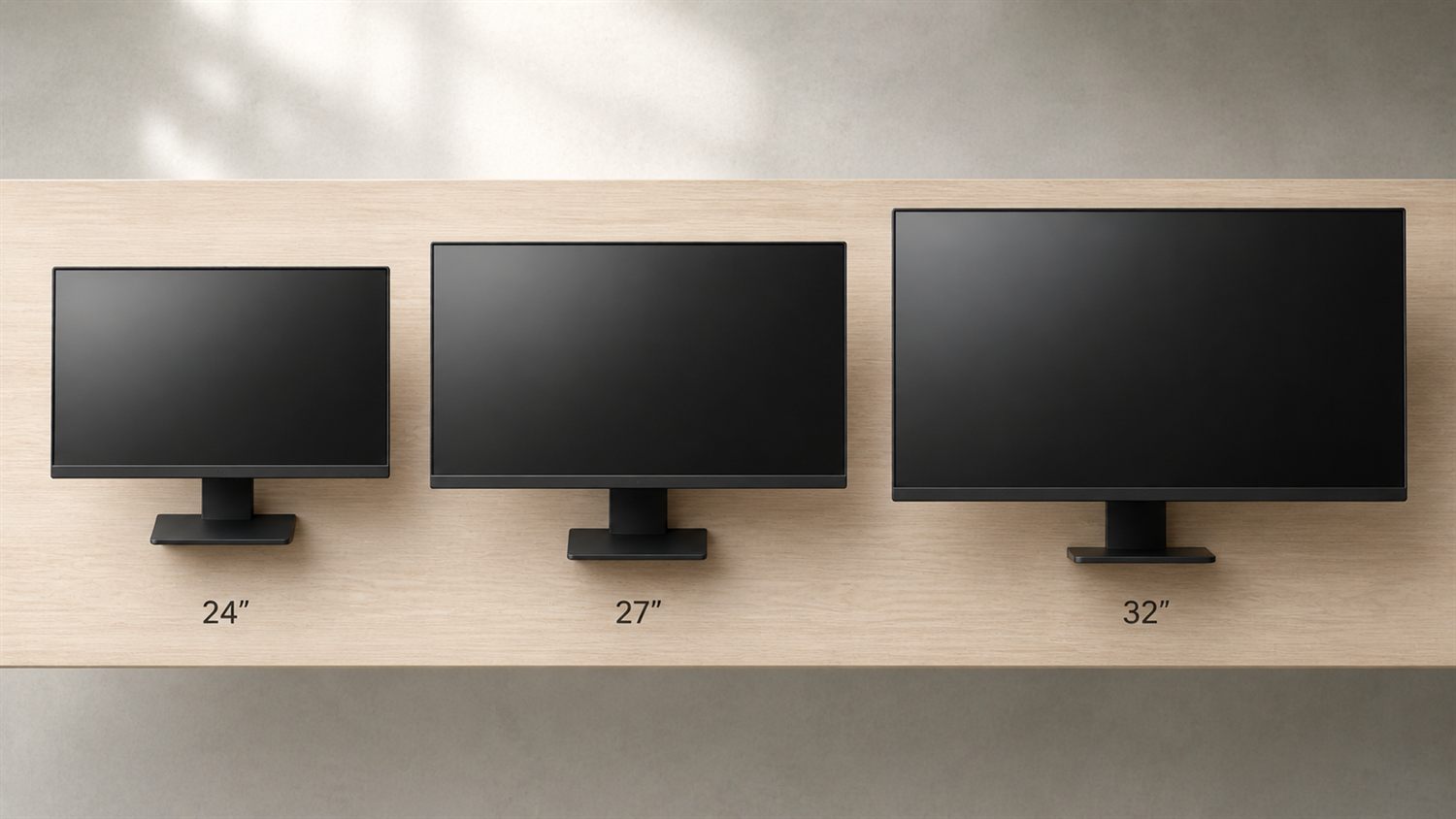 Common monitor sizes side by side: 24 inch, 27 inch, 32 inch and 34 inch ultrawide.
The single most common mistake in monitor buying is going too small or too large for the desk and viewing distance.
A 24-inch monitor sits comfortably on a standard desk at typical sitting distance (50 to 70 centimetres from your eyes). It works well as a single screen for office work and budget setups, or as one half of a dual-screen pair. At Full HD resolution the pixels are large enough to read without scaling. It is the sensible default for shared workstations and student setups.
A 27-inch monitor is the most popular size we ship at Elara. It strikes the best balance for a single-screen desk: enough working space to keep two windows side by side comfortably, without dominating the desk. Pair it with QHD (2560 by 1440) resolution rather than Full HD; on a 27-inch screen, Full HD pixels are large enough that text starts to look soft. QHD pixels at 27 inches give crisp text and roughly the same physical pixel size as Full HD on a 24-inch screen.
A 32-inch monitor earns its place if you regularly work with spreadsheets that span many columns, video timelines, code editors with side-by-side panels, or anyone who would otherwise want a dual-screen setup but prefers a single large display. At 32 inches you want either QHD (which gives larger pixels than 27-inch QHD, useful if you find text too small) or 4K (which gives the same pixel density as 27-inch QHD but with much more screen real estate). 4K at 32 inches is the sweet spot for creative work where pixel density matters.
An ultrawide monitor at 34 inches and 21:9 aspect ratio is the productivity choice if you mostly work with two windows side by side and find a 32-inch standard 16:9 too tall and too wide. Ultrawide curves at this size noticeably help with peripheral viewing comfort. Below 34 inches an ultrawide is rarely worth the premium; above 34 inches you are paying for novelty more than utility unless your specific workflow benefits from the extreme width.
Above 34 inches and into super-ultrawide territory (38, 44, 49 inches) is for specific use cases - flight simulators, financial trading desks, video production where you want a single screen that replaces two - and rarely makes sense as a default office monitor. The desk space requirements are significant.
A practical test: stretch your arms straight forward toward where the monitor will sit. If your hands roughly reach the screen, that distance is your viewing distance. For 27-inch screens you want about 60 to 80 centimetres. Less than 50 centimetres and you will be moving your head to read the corners; more than 90 centimetres and a 27-inch screen feels small.
Resolution and pixel density
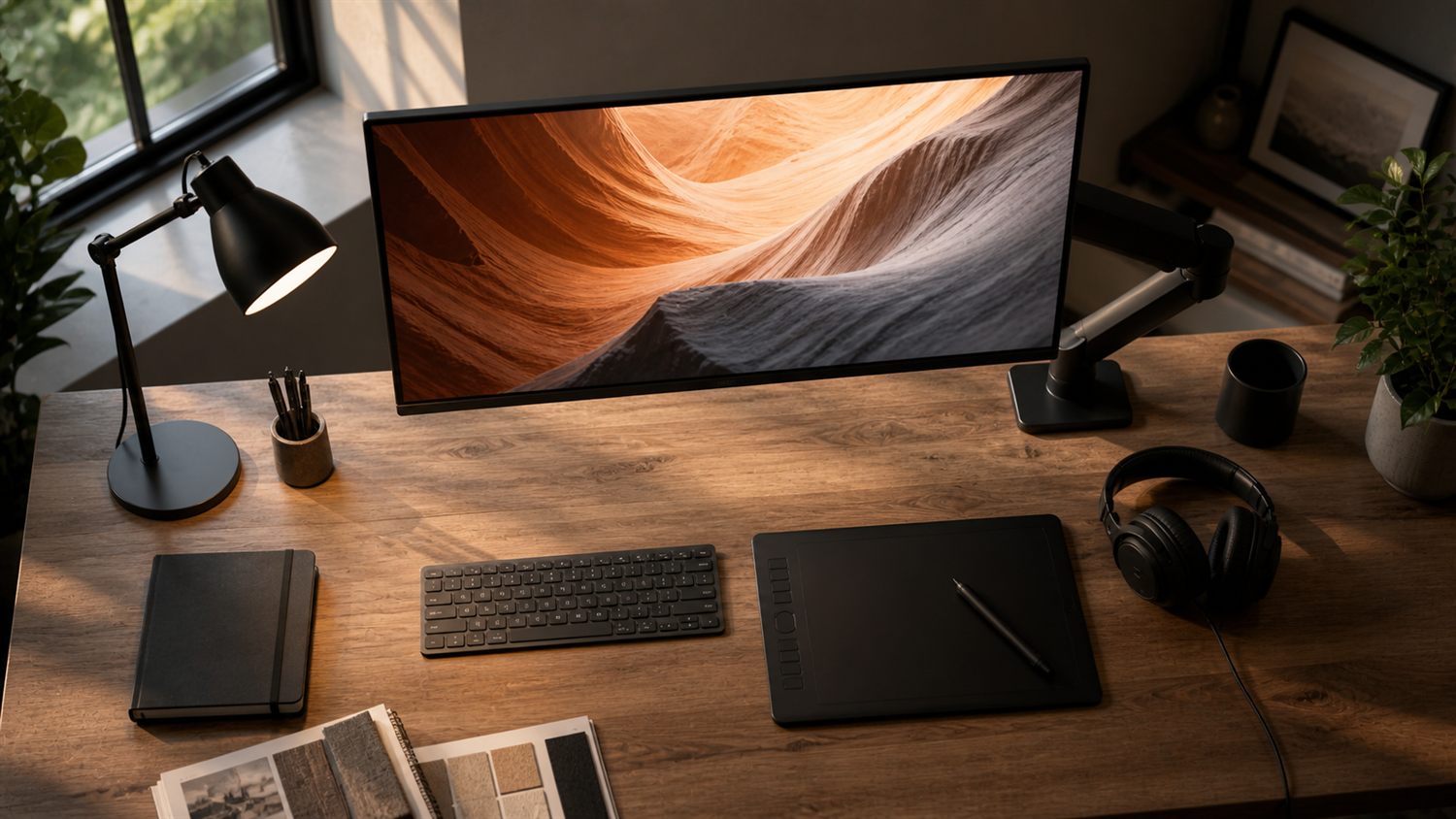 4K resolution at 32 inches gives photo, video and design work the pixel density it needs.
Resolution is the number of pixels the screen has. Pixel density (often expressed as PPI, pixels per inch) is what you actually perceive as sharpness. A higher resolution does not automatically give you a sharper image; it gives you a sharper image if it is paired with the right screen size.
Three resolutions matter in 2026:
Full HD (1920 by 1080) is fine on a 24-inch screen. The pixel density is around 92 PPI, similar to what desktop monitors used for the last decade and a half. Text is readable without scaling. On a 27-inch screen, Full HD drops to 81 PPI, which is noticeably soft on text. We do not recommend Full HD above 24 inches except for budget gaming where high refresh rate matters more than sharpness.
QHD (2560 by 1440), also called 1440p, is the practical default for everyday work. On a 27-inch screen the pixel density is 109 PPI, which is sharp enough to be visibly better than Full HD without crossing into territory that requires scaling. On a 32-inch screen QHD drops to 92 PPI, the same density as 24-inch Full HD. If you want sharper than that on a 32-inch screen, you are looking at 4K.
4K (3840 by 2160), also called UHD, gives 163 PPI on a 27-inch screen, 138 PPI on a 32-inch screen. The 27-inch case is genuinely sharp but typically requires display scaling at 125 percent or 150 percent because the system fonts become small at 100 percent. The 32-inch case lands close to the QHD sweet spot for sharpness without forcing scaling. 4K only really pays off at 32 inches and larger, or for creative work where you need pixel-level precision.
Practical rule of thumb: 24 inches Full HD, 27 inches QHD, 32 inches QHD or 4K, 34 inches ultrawide QHD. Deviating from these requires a specific reason.
There is one important constraint that buyers sometimes miss: your computer needs to be able to drive the resolution at the refresh rate you want, over the cable you plan to use. An older laptop with HDMI 1.4 will be limited to 4K at 30Hz, which is unusable for daily work. A modern laptop with HDMI 2.1 or DisplayPort 1.4 will handle 4K at 144Hz comfortably.
Refresh rate, response time and motion clarity
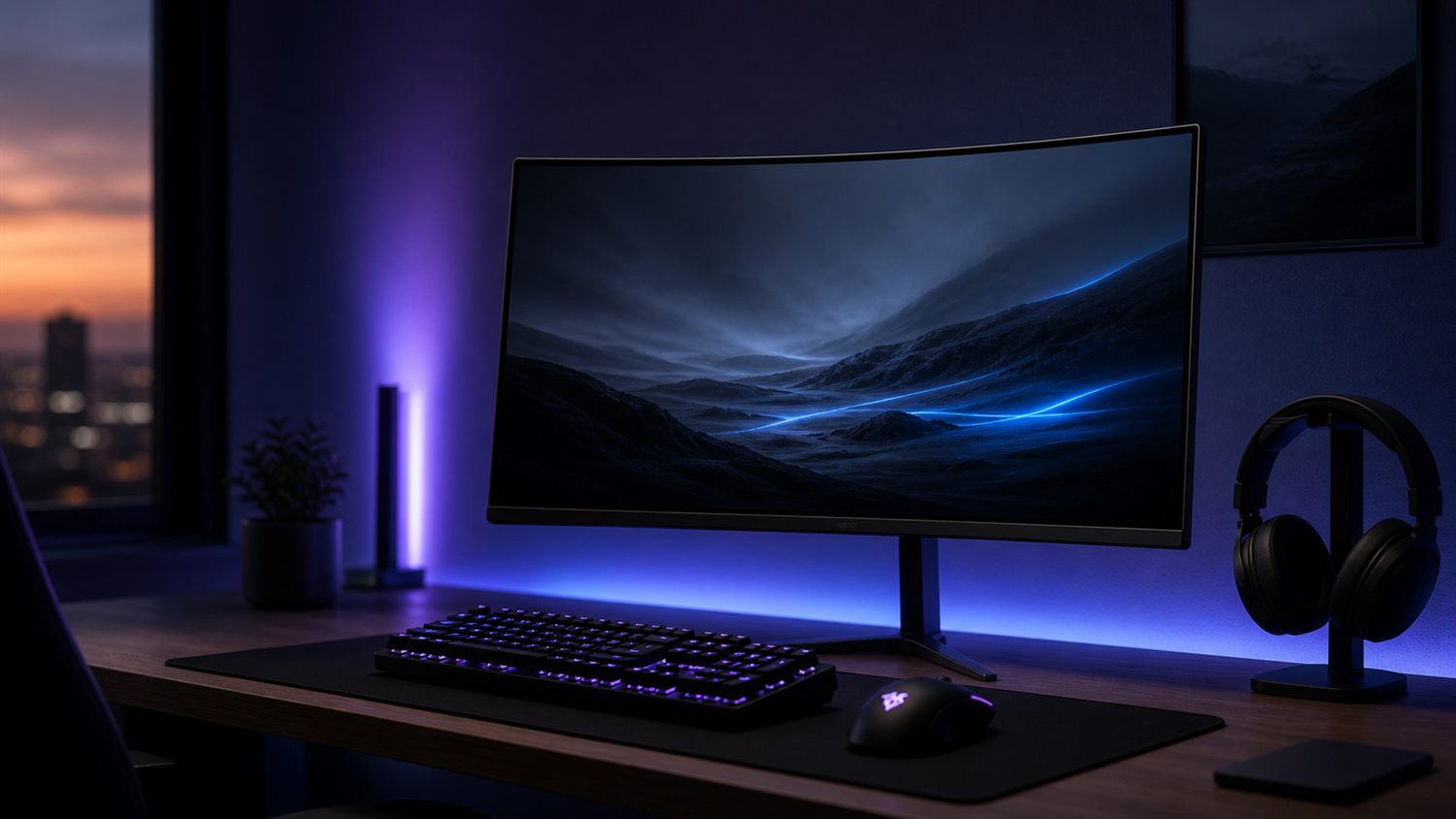 For gaming, refresh rate becomes the most important specification - 144Hz is the floor, 240Hz a real step up.
Refresh rate is how many times per second the monitor redraws the image. It is measured in Hertz. A 60Hz monitor redraws sixty times per second; a 144Hz monitor redraws 144 times per second.
For everyday office work, browsing, video calls and watching video, anything from 60Hz to 100Hz is perfectly fine. Higher refresh rates do not make spreadsheets faster or text easier to read. If you spend zero time gaming, a 75Hz IPS monitor will serve you well for ten years.
For gaming, refresh rate becomes the most important specification on the monitor. 144Hz is the sensible floor in 2026; even mid-range gaming monitors include it. 240Hz is a meaningful step up for fast first-person shooters where input latency matters. 360Hz and 540Hz are diminishing returns territory and only matter if you are competitive at a level where milliseconds change outcomes.
Crucially: your computer must be able to render games at the frame rate the monitor can display, or the high refresh rate is wasted. A 240Hz monitor showing a game at 60 frames per second is no smoother than a 60Hz monitor showing the same game. Match the monitor to the GPU and to the games you actually play.
Response time is how quickly each pixel can change colour, measured in milliseconds. It matters for motion clarity in fast scenes. Lower is better. 1 millisecond grey-to-grey is now standard on gaming monitors; OLED panels drop this to 0.03 milliseconds. For non-gaming use, response time below 5 milliseconds is fine.
Be aware that monitor manufacturers measure response time in inconsistent ways. The headline "1ms" specification often refers to a fast subset of pixel transitions under specific overdrive settings, and real-world performance can be higher. Reviews from sites that test pixel response (RTINGS is the gold standard) are the only reliable source.
Variable refresh rate technologies, AMD FreeSync and NVIDIA G-Sync, eliminate screen tearing by syncing the monitor refresh rate to the GPU output. Almost every modern gaming monitor supports both standards under the umbrella term "Adaptive Sync". If you game, look for this. If you do not, ignore it.
Panel technology
There are three panel types in widespread use in 2026: IPS, VA, and OLED. Each has strengths.
IPS (In-Plane Switching) panels offer accurate colour, wide viewing angles and fast enough response times for everything except top-tier competitive gaming. The viewing angle matters more than people expect, especially in shared offices and on monitors used for video calls. IPS is the right choice for the vast majority of buyers. The downsides are limited contrast (typically 1000:1) and "IPS glow" in dark scenes when viewed off-axis.
There are sub-variants - Fast IPS, Nano IPS, ColorIQ, IPS Black - that improve specific characteristics. Most are marketing rebrands of the same underlying technology with minor refinements. Do not get drawn into specification comparisons between IPS variants unless you have a specific reason.
VA (Vertical Alignment) panels offer deeper blacks and higher contrast ratios than IPS, typically 3000:1 or 4000:1. This makes them well suited to curved gaming monitors and any monitor used heavily for movies. The trade-offs are slightly slower response times (which can show motion blur in fast gaming scenes) and narrower colour viewing angles than IPS. VA panels are common at 32 inches and above where the higher contrast is more visible.
OLED (Organic Light Emitting Diode) panels are the premium choice in 2026. Each pixel emits its own light, which means perfect blacks (the pixel is simply off), near-instant response times, and the best HDR performance available. The downsides are price (still a 30 to 50 percent premium over high-end IPS), risk of permanent burn-in if static elements (taskbars, desktop icons, browser tabs) sit on screen for thousands of hours, and reduced peak brightness in full-screen white scenes.
OLED is genuinely better for gaming, watching films, and any environment where you can mostly avoid static elements. For office work where the same browser tabs, dock and menu bar sit on screen all day, IPS remains the safer choice. Manufacturer warranties on OLED burn-in have improved (Samsung, LG and Dell now cover burn-in for two to three years on consumer OLEDs), which has reduced but not eliminated this concern.
QLED and Mini-LED are sometimes presented as alternative panel types. They are not. QLED is an LCD panel with a quantum-dot colour layer; Mini-LED is an LCD panel with a denser backlight array. Both are improvements on standard VA or IPS panels, and both are competitive with OLED on brightness while costing less. Mini-LED in particular is worth considering for HDR-focused use cases.
HDR and what it actually does
High Dynamic Range (HDR) is one of the most marketed and least understood monitor specifications in 2026. The short version: most monitors that claim HDR support do not deliver a meaningful HDR experience.
HDR is the ability to display very bright highlights (the sun glinting off water, a flame in a dark scene) and very dark shadows simultaneously, with more colour range in the bright and dark regions than standard dynamic range allows. Done well, HDR is genuinely transformative for films, games and photography. Done badly, it makes content look washed out and dim.
The DisplayHDR certification scheme from VESA gives a rough quality floor. The tiers from worst to best:
DisplayHDR 400 is essentially marketing. The peak brightness requirement (400 nits) is barely above standard dynamic range. The contrast and colour requirements are easily met by any IPS panel. Avoid as an HDR purchase decision; treat as a checkbox feature.
DisplayHDR 600 is genuine HDR with caveats. Peak brightness of 600 nits with local dimming requirements that produce visibly better highlights. Good for everyday HDR content, mediocre for premium HDR films.
DisplayHDR 1000 and DisplayHDR 1400 are credible HDR. 1000 nits peak brightness with full-array local dimming. This is where HDR delivers what marketing promised. Almost exclusively found on Mini-LED LCDs at 32 inches and larger, premium price.
DisplayHDR True Black 400, 500 and 600 are OLED-specific tiers. The lower nit counts here are misleading; OLED's perfect blacks and per-pixel light control mean the contrast is far better than the peak brightness number suggests. These tiers are genuine premium HDR.
For most buyers in 2026, HDR is not worth paying extra for unless you fall into one of three groups: gamers playing HDR-supporting titles on a recent console or PC, film enthusiasts watching HDR content on streaming services, or creative professionals editing HDR content. For office work, browsing and video calls, HDR is irrelevant - the content you consume is not in HDR.
Connectivity
Modern monitors have several display inputs. Knowing which to use matters.
HDMI is on every modern monitor and works with most computers. HDMI 2.0 carries 4K at 60Hz; HDMI 2.1 carries 4K at 144Hz and 8K at 60Hz. If you bought your computer or monitor in the last three years, expect HDMI 2.0 or 2.1. Older HDMI 1.4 cannot drive 4K above 30Hz, which matters for older laptops driving new monitors.
DisplayPort is the better choice when running high resolutions at high refresh rates. DisplayPort 1.4 carries 4K at 144Hz comfortably; DisplayPort 2.0 and 2.1 carry up to 8K at 60Hz or 4K at 240Hz. For gaming setups and creative workstations, DisplayPort is the default. Most desktop GPUs have multiple DisplayPort outputs; many laptops do not, so check before assuming.
USB-C with DisplayPort Alt Mode and Power Delivery is the connection that has changed the most in the last three years. A single USB-C cable carries video output, data (USB hub functionality so the monitor can host keyboard, mouse and webcam), and laptop charging up to 100 watts. For a hybrid worker with a modern laptop, a USB-C monitor is a transformative quality of life upgrade - one cable replaces three or four every time you sit down at the desk.
Look for "USB-C 90W" or "USB-C 100W" in the monitor specification, plus the words "DisplayPort Alt Mode" or "Thunderbolt 4". Below 60W, the monitor will not charge most modern laptops fast enough. Some monitors include a USB-C port that only carries data, not video or power; check carefully.
Older inputs - DVI, VGA - are now rare on monitors and obsolete on computers. If you have hardware requiring these, consider whether replacing the older device makes more sense than working around it with adapters.
KVM functionality on some monitors lets a single keyboard and mouse switch between two computers connected to the same monitor. Useful if you have a work laptop and personal laptop sharing the same desk. Look for "Built-in KVM" or "KVM Switch" in the specification.
Ergonomics and mounting
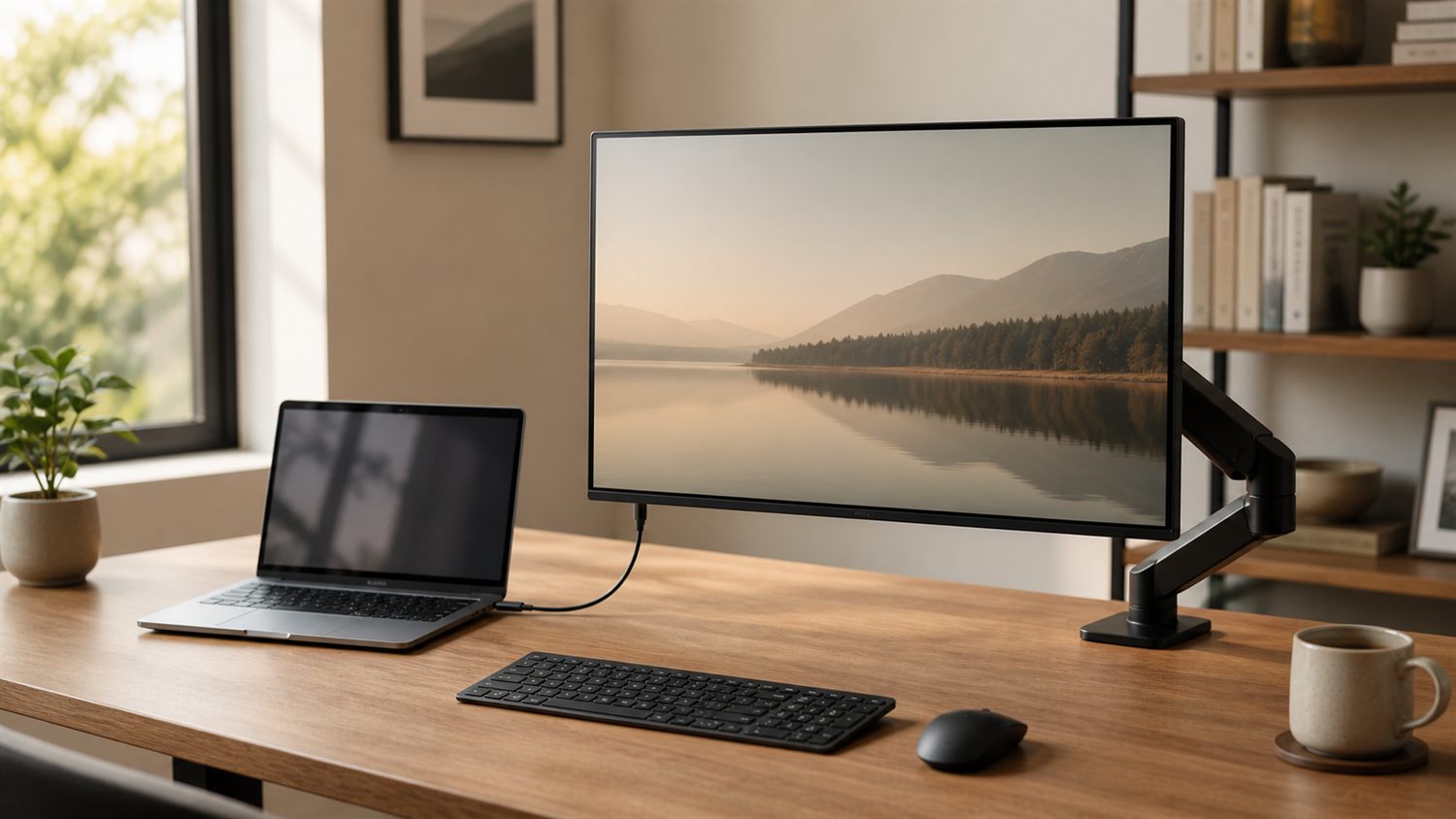
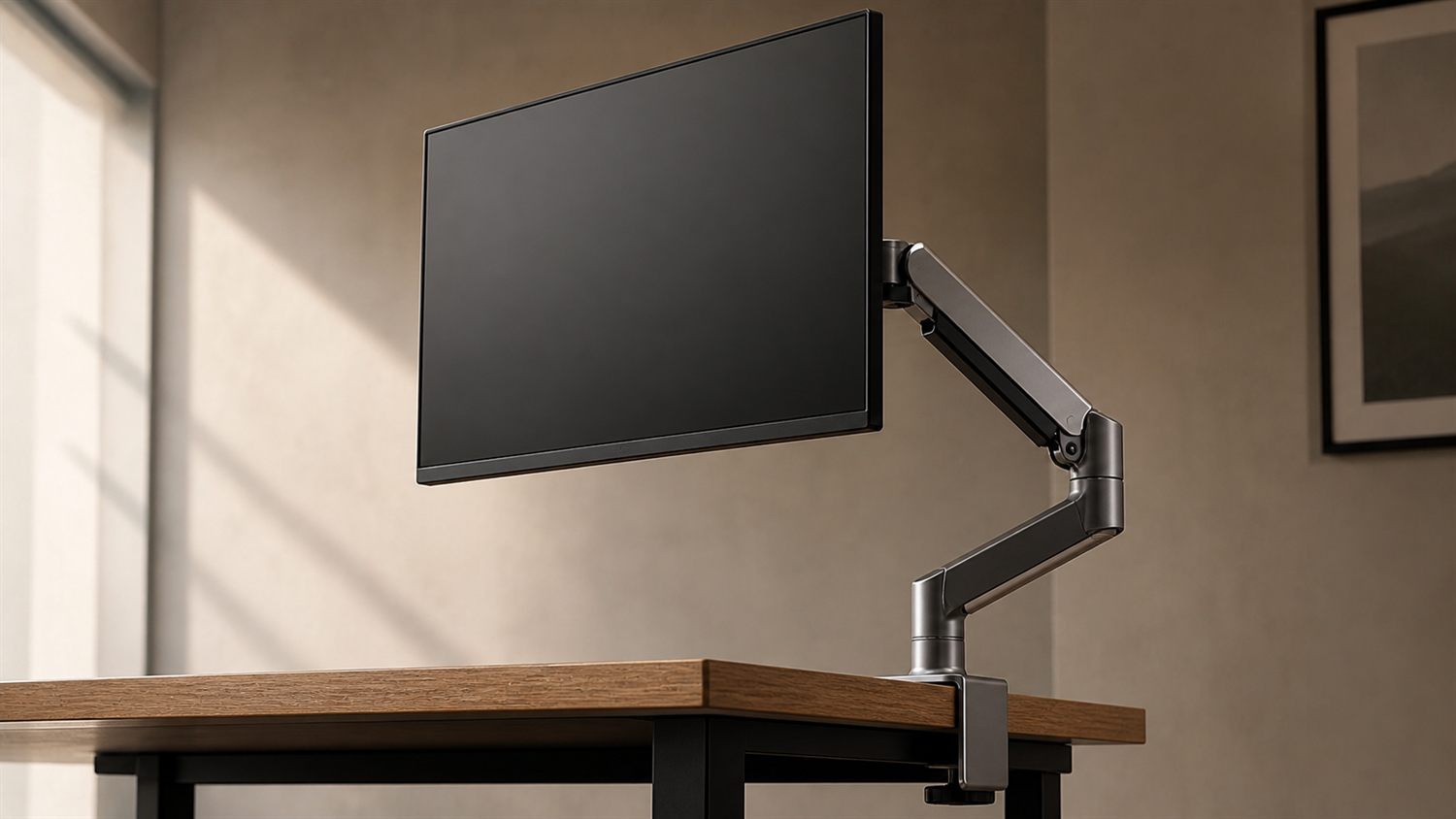 A monitor arm frees desk space and lets you set screen height and distance to match your seated posture.
A monitor used for eight hours a day will affect your body. The screen height should be such that the top of the visible image is roughly at eye level when you sit upright. The screen distance should be such that you can read text without leaning forward.
Stand adjustment is the most overlooked monitor specification. A monitor with a fixed-height stand cannot be adjusted to your desk and chair, and using it day after day will cause neck and shoulder problems. Look for height-adjustable stands with at least 100mm of travel. Tilt and swivel adjustment are nice but less important than height.
If a monitor you want has a poor stand, two options: replace the stand with a third-party height-adjustable stand, or pair the monitor with a monitor arm. Almost every modern monitor has VESA mount support (75x75mm or 100x100mm patterns) on the back, which lets you remove the stand and attach the monitor to an arm.
Monitor arms free up desk space, allow rapid repositioning, and are essential for dual or triple monitor setups. A good single arm costs 80 to 200 euro. Cheaper arms (under 50 euro) often have stiff joints that fight you, and weak gas springs that sag over time.
Brands to look at: Ergotron (premium, the gold standard), Neomounts by Newstar (Mid-Range), Amer Mounts and Vision. Budget-friendly options from StarTech and Manhattan work well for light use, but may not perform as consistently with daily repositioning.
For dual monitors, the cleanest setup is two single arms rather than one dual arm. Single arms allow each monitor to be positioned independently; dual arms force a fixed pivot point that compromises one or both monitors' positions.
Mounting onto walls is a third option for fixed installations like meeting rooms or reception. Standard VESA wall mounts work with any VESA-compatible monitor and cost 20 to 60 euro for tilt-only or full-articulation models.
Recommendations by use case
 Quick view: which monitor profile fits which kind of work.
Home office and hybrid work, single monitor: 27 inch QHD, 75 to 100Hz, IPS panel, USB-C with at least 65W power delivery, height-adjustable stand. Budget around 250 to 400 euro. Models worth looking at: Dell P2725QE, LG 27UP650, Samsung ViewFinity S6.
Home office, dual monitor: Two 24 inch Full HD IPS monitors, or two 27 inch QHD IPS monitors. Pair with a USB-C dock (one cable to laptop, two cables out to monitors) and twin monitor arms. Budget 400 to 700 euro for the pair plus arms.
Creative work (photo, video, design): 27 inch or 32 inch 4K, IPS or OLED, factory-calibrated, sRGB and DCI-P3 colour coverage stated explicitly in spec sheet, hardware calibration support if your workflow needs it. Look at Dell UltraSharp U2725QE, U3225QE, BenQ PD series, ASUS ProArt range. Budget 600 to 1200 euro.
Gaming, mid-range: 27 inch QHD at 144Hz or 165Hz, IPS panel, FreeSync or G-Sync compatible. Models worth looking at: Dell G2725D, LG UltraGear 27GS75Q, AOC Q27G3X. Budget 250 to 400 euro.
Gaming, premium: 27 inch QHD or 32 inch 4K, OLED panel, 240Hz or higher. Samsung Odyssey OLED G7, LG UltraGear OLED, Alienware AW2725DF, ASUS ROG Swift OLED. Budget 700 to 1500 euro.
Multitasking and productivity: 34 inch ultrawide QHD (3440 by 1440), IPS, with USB-C dock functionality if used with a laptop. LG 34WQ650, Dell U3425WE. Budget 400 to 800 euro.
Budget or second screen: 24 inch Full HD IPS, 75Hz, HDMI. AOC 24B1H, Dell P2425H. Budget 100 to 180 euro.
Public-facing or signage use: Look at large-format displays from Samsung Smart Signage, LG Commercial, Philips B-line. These are different products from desktop monitors and built for 16-hour or 24-hour duty cycles. Budget 500 to 2500 euro depending on size.
What is changing in 2026
Three trends to know about, in case they affect your decision.
OLED is going mainstream. What was a 1500 euro premium category two years ago is now available at 700 to 800 euro for 27 inch QHD models. Burn-in warranties have extended. For gaming and entertainment use, OLED is becoming the default recommendation at the upper-mid-range and above. For office work, the burn-in concern still applies.
USB-C is consolidating. New monitors are increasingly designed around USB-C as the primary input. By the end of 2026, most monitors above 250 euro will include USB-C with Power Delivery. If you are buying a USB-C monitor today and might switch laptops in three years, you are well-positioned.
4K at high refresh rates is becoming affordable. 4K 144Hz monitors that cost 1000 euro in 2023 are now available at 500 to 700 euro. If you have been waiting for 4K gaming at the same price as QHD gaming a few years ago, the wait is largely over.
What is not changing: the core decisions of size, resolution, refresh rate and panel type still drive 80 percent of how good the monitor will feel. The 2026 trends affect how much you pay for which combination, not which combination you should choose.
Frequently asked questions
What size monitor is best for most users?
For most desks, 24 inch to 27 inch is the practical sweet spot. The right size depends on how far you sit from the screen and how much desk you have. 27 inch is the most popular single-screen choice; 24 inch is best for shared desks and dual-screen pairs.
Is 4K always better?
Not always. 4K makes sense on screens 27 inch and above, paired with a recent computer that can drive it. On a 24 inch screen, the pixel density is so high that text becomes hard to read without scaling, which adds workflow friction.
What is the difference between QHD and 4K?
QHD is 2560 by 1440, about 1.8 times the pixels of Full HD. 4K is 3840 by 2160, about 4 times Full HD. QHD is the sensible default for 27 inch screens; 4K starts paying off at 32 inch and above, or for creative work that benefits from extra pixels.
Do monitor arms and stands really matter?
Yes. Better positioning improves comfort, frees up desk space and makes multi-display setups easier to live with. A monitor with a poor stand, used for eight hours a day, will cause posture problems within months.
What should I prioritise for a gaming monitor?
Refresh rate (144Hz minimum, 240Hz+ for competitive), response time (1ms or below), and a resolution your GPU can actually drive at high frame rates. IPS or OLED panels for fast response. The monitor and the computer must match - a high-refresh monitor is wasted on a computer that cannot render games at high frame rates.
Is HDR worth paying for?
For most office work and everyday browsing, no. The content you consume is not HDR. For gaming on supported titles, watching HDR films, or editing HDR content, yes - but only on monitors with DisplayHDR 600 or higher (or DisplayHDR True Black on OLEDs). DisplayHDR 400 is marketing and not real HDR.
Should I buy a curved monitor?
For ultrawide displays at 34 inches and above, curve is genuinely useful for peripheral viewing comfort. For standard 16:9 monitors at 27 inches and below, curve is mostly cosmetic. At 32 inches the case for curve depends on your viewing distance - close in, curve helps; further back, it does not matter much.
What about the warranty?
Buy from an Irish retailer with proper consumer-rights backing. EU consumer law gives you two years of statutory warranty cover regardless of what the manufacturer offers; UK and EU sellers offer this, sellers based outside the EU often do not. Returns and warranty handling on a 400 euro monitor that needs to ship back to a non-EU address can quickly cost more than the savings.
What if I want help choosing?
We are happy to help. Contact us through the site and tell us your use case, budget, and what you are connecting the monitor to. We will recommend two or three specific models from current stock.
Browse current stock
Ready to buy? Start with our computer monitors range for the full list, or jump to a specific brand range:
Free delivery on orders over 250 euro anywhere in Ireland.
This guide was last updated on May 5, 2026. We update the guide as new monitor ranges launch and as market conditions change. If you spotted something out of date, let us know.